
Product docs and API reference are now on Akamai TechDocs.
Search product docs.
Search for “” in product docs.
Search API reference.
Search for “” in API reference.
Search Results
results matching
results
No Results
Filters
Migrating Virtual Machines to Akamai Cloud With Packer
Traducciones al EspañolEstamos traduciendo nuestros guías y tutoriales al Español. Es posible que usted esté viendo una traducción generada automáticamente. Estamos trabajando con traductores profesionales para verificar las traducciones de nuestro sitio web. Este proyecto es un trabajo en curso.
Migrating existing virtual machines (VMs) between cloud providers can be challenging, especially when applications depend on specific system configurations, services, and data layouts. Rather than copying disks directly, many migrations involve rebuilding the system in a controlled and repeatable way.
This guide demonstrates how to migrate a VM to Akamai Cloud using HashiCorp Packer. It uses an AWS EC2 instance as the working example, but the same approach applies to VMs from other cloud providers or on-premises environments.
Follow these steps to capture system configuration and data from a source VM, rebuild it on a clean base image, and produce a reusable image that can be deployed as a new VM on Akamai Cloud.
How Packer Works for VM Migration
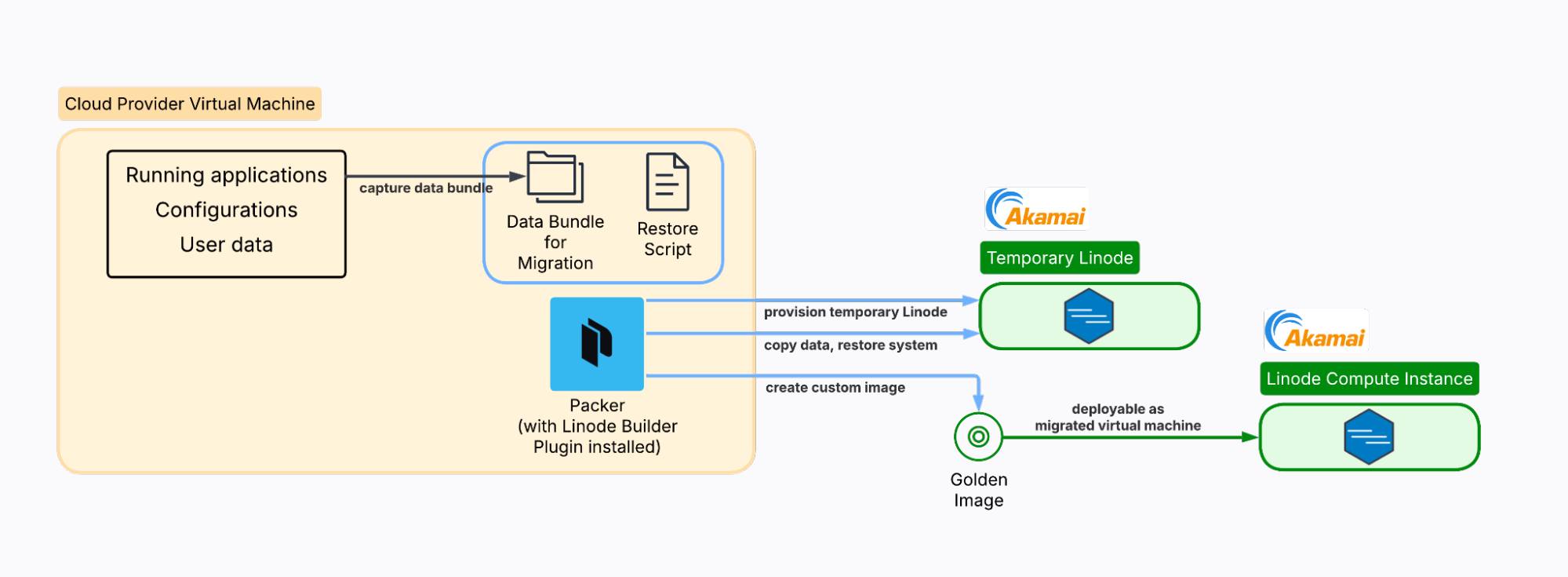
Unlike traditional imaging tools that create bit-for-bit copies of existing disks, Packer takes a different approach. It creates a new VM from a base image (such as Ubuntu 24.04) and uses provisioners to replicate your configuration and bundle your data during the build process. The result is a “golden image” that contains your applications and data, ready to deploy on Akamai Cloud.
This approach means Packer creates a fresh installation rather than cloning your existing system state. While this requires more setup, it often results in a more reliable and optimized final image.
What Can Packer Migrate?
The table below summarizes what is migrated automatically, what is not migrated, and what requires additional handling:
| Successfully Migrated | Not Migrated | Requires Additional Planning |
|---|---|---|
| Applications | Exact OS state | Large databases |
| Installed packages | Kernel modules | SSL certificates with private keys |
| Configuration files | Running processes | Secrets |
| System settings | Process state | API keys |
| User data | Temporary files | Third-party integrations |
| Application files | Cached data | External dependencies |
| User accounts | System logs | Large file stores and media libraries |
| Database dumps | Transient data | Log archives |
| Backups | ||
| SSL certificates | ||
| Environment files | ||
| Service configurations | ||
| Startup scripts |
Why Use Packer Instead of a Direct Image Upload?
Akamai Cloud supports direct image uploads, but this approach has limitations (see our Images documentation for more information). Direct uploads are constrained by size limits (6 GB uncompressed / 5 GB compressed) and require specific disk image formats. Many production systems exceed these size constraints, especially when including application data and databases.
Packer’s Akamai Cloud builder plugin provides an automated alternative that helps keep migrated disk sizes slim enough to stay within these size constraints while enabling repeatable builds. The process is API-driven and can be integrated into CI/CD pipelines for ongoing infrastructure management.

Before You Begin
Ensure you have a source VM that you can access via SSH with administrative (
sudo) privileges.Example deployment The examples in this article use an AWS EC2 instance running NGINX and a Node.js Express API, with user data stored in/home/ubuntu/userdata. You can deploy this example using the CloudFormation template in this GitHub repository. To use this example deployment, you also need an AWS account with permission to create CloudFormation stacks and EC2 instances, and the AWS CLI installed and configured (aws configure).Ensure your local machine has an SSH client and access to the source VM using an SSH key.
Create an Akamai Cloud account if you do not already have one. Follow our Get Started guide.
Generate an Akamai Cloud API token. Follow our Manage personal access tokens guide. This guide uses the placeholder AKAMAI_CLOUD_API_TOKEN to represent your Akamai Cloud API token in commands.
sudo. If you’re not familiar with the sudo command, see the
Users and Groups guide.Inspect the Source VM
The commands below provide a baseline inventory of the source VM, including installed packages, running services, disk usage, and listening ports.
List the installed packages and store the output in a file:
dpkg --get-selections > installed-packages.txtCheck the running services:
systemctl list-units --type=service --state=runningUNIT LOAD ACTIVE SUB DESCRIPTION acpid.service loaded active running ACPI event daemon chrony.service loaded active running chrony, an NTP client/server cron.service loaded active running Regular background program processing daemon dbus.service loaded active running D-Bus System Message Bus express-api.service loaded active running Express API Service fwupd.service loaded active running Firmware update daemon getty@tty1.service loaded active running Getty on tty1 irqbalance.service loaded active running irqbalance daemon ModemManager.service loaded active running Modem Manager multipathd.service loaded active running Device-Mapper Multipath Device Controller networkd-dispatcher.service loaded active running Dispatcher daemon for systemd-networkd nginx.service loaded active running A high performance web server and a reverse proxy server ...Review disk usage:
df -h
sudo du -sh /var /opt /home/ubuntu
Filesystem Size Used Avail Use% Mounted on /dev/root 6.8G 2.8G 4.0G 41% / tmpfs 458M 0 458M 0% /dev/shm tmpfs 183M 912K 182M 1% /run tmpfs 5.0M 0 5.0M 0% /run/lock efivarfs 128K 3.6K 120K 3% /sys/firmware/efi/efivars /dev/nvme0n1p16 881M 149M 671M 19% /boot /dev/nvme0n1p15 105M 6.2M 99M 6% /boot/efi tmpfs 92M 12K 92M 1% /run/user/1000 881M /var 4.0K /opt 12M /home/ubuntuCheck listening ports:
sudo ss -tulnpNetid State Recv-Q Send-Q Local Address:Port Peer Address:Port Process udp UNCONN 0 0 127.0.0.54:53 0.0.0.0:* users:(("systemd-resolve",pid=8214,fd=16)) udp UNCONN 0 0 127.0.0.53%lo:53 0.0.0.0:* users:(("systemd-resolve",pid=8214,fd=14)) udp UNCONN 0 0 172.31.31.1%ens5:68 0.0.0.0:* users:(("systemd-network",pid=19258,fd=23)) udp UNCONN 0 0 127.0.0.1:323 0.0.0.0:* users:(("chronyd",pid=13440,fd=5)) udp UNCONN 0 0 [::1]:323 [::]:* users:(("chronyd",pid=13440,fd=6)) tcp LISTEN 0 4096 127.0.0.54:53 0.0.0.0:* users:(("systemd-resolve",pid=8214,fd=17)) tcp LISTEN 0 511 0.0.0.0:80 0.0.0.0:* users:(("nginx",pid=20521,fd=5),("nginx",pid=20520,fd=5),("nginx",pid=19520,fd=5)) tcp LISTEN 0 4096 0.0.0.0:22 0.0.0.0:* users:(("sshd",pid=20549,fd=3),("systemd",pid=1,fd=193)) tcp LISTEN 0 511 0.0.0.0:3000 0.0.0.0:* users:(("node",pid=20507,fd=18)) tcp LISTEN 0 4096 127.0.0.53%lo:53 0.0.0.0:* users:(("systemd-resolve",pid=8214,fd=15)) tcp LISTEN 0 511 [::]:80 [::]:* users:(("nginx",pid=20521,fd=6),("nginx",pid=20520,fd=6),("nginx",pid=19520,fd=6)) tcp LISTEN 0 4096 [::]:22 [::]:* users:(("sshd",pid=20549,fd=4),("systemd",pid=1,fd=194))
Use this inventory to verify that your source VM includes the services, data, and configuration you expect to migrate. Once you have reviewed the output, you can begin preparing the migration environment.
Verify the Source Operating System
First, determine exactly what operating system you’re running:
Check the OS version and distribution:
lsb_release -aFor the example AWS EC2 environment, you might see output like the following:
No LSB modules are available.
Distributor ID: Ubuntu
Description:    Ubuntu 24.04.3 LTS
Release:        24.04
Codename:       noble
Alternative Here’s an alternate command to check the OS version and distribution:
cat /etc/os-releaseCheck the architecture:
uname -mx86_64
Find a Compatible Akamai Cloud Base Image
Based on your source VM architecture, identify a compatible base image available on Akamai Cloud.
Set your Akamai Cloud API token as an environment variable, replacing AKAMAI_CLOUD_API_TOKEN with your actual token:
export AKAMAI_CLOUD_TOKEN="AKAMAI_CLOUD_API_TOKEN"List the available public images:
curl -H "Authorization: Bearer $AKAMAI_CLOUD_TOKEN" \
  https://api.linode.com/v4/images | \
  jq '.data[] | select(.is_public == true) | {id: .id, label: .label}'
For maximum compatibility, choose the image that most closely matches the OS of your source VM:
...
{
  "id": "linode/ubuntu22.04",
  "label": "Ubuntu 22.04 LTS"
}
{
  "id": "linode/ubuntu22.04-kube",
  "label": "Ubuntu 22.04 LTS KPP"
}
{
  "id": "linode/ubuntu24.04",
  "label": "Ubuntu 24.04 LTS"
}
{
  "id": "linode/ubuntu16.04lts",
  "label": "Ubuntu 16.04 LTS"
}
{
  "id": "linode/ubuntu18.04",
  "label": "Ubuntu 18.04 LTS"
}
{
  "id": "linode/ubuntu20.04",
  "label": "Ubuntu 20.04 LTS"
}
{
  "id": "linode/ubuntu24.10",
  "label": "Ubuntu 24.10"
}
For the example used in this guide, select
linode/ubuntu24.04.
Install and Configure Packer
Install Packer on your source VM by following the official installation instructions. For additional reference, see the Packer CLI usage documentation.
Create a directory for trusted keys:
sudo mkdir -m 0755 -p /etc/apt/keyrings/Download and install HashiCorp’s GPG key:
curl -fsSL https://apt.releases.hashicorp.com/gpg | \
sudo gpg --dearmor -o /etc/apt/keyrings/hashicorp-archive-keyring.gpg
Add the HashiCorp repository:
echo "deb [arch=$(dpkg --print-architecture) signed-by=/etc/apt/keyrings/hashicorp-archive-keyring.gpg] https://apt.releases.hashicorp.com $(grep -oP '(?<=UBUNTU_CODENAME=).*' /etc/os-release || lsb_release -cs) main" | sudo tee /etc/apt/sources.list.d/hashicorp.listUpdate the package list and install Packer:
sudo apt update
sudo apt install packer
Verify the installation:
packer --versionPacker v1.15.1Install the official Akamai Cloud builder plugin for Packer:
sudo packer plugins install github.com/linode/linodeInstalled plugin github.com/linode/linode v1.10.1 in "/root/.config/packer/plugins/github.com/linode/linode/packer-plugin-linode_v1.10.1_x5.0_linux_amd64"
Create a Data Capture Script
The data capture phase ensures that the migrated system has the files and configuration it needs to function correctly.
On your source VM, create a folder named
packer-migrationto serve as the migration working directory:sudo mkdir -p /usr/packer-migration sudo chown ubuntu:ubuntu /usr/packer-migration cd /usr/packer-migrationUse a terminal-based text editor such as
nanoto create a script file (for example,capture-system.sh) to systematically capture your system configuration and data:sudo nano capture-system.shUsing the example AWS EC2 environment for this guide, the contents of your data capture script should look like this:
- File: capture-system.sh
  1
  2
  3
  4
  5
  6
  7
  8
  9
 10
 11
 12
 13
 14
 15
 16
 17
 18
 19
 20
 21
 22
 23
 24
 25
 26
 27
 28
 29
 30
 31
 32
 33
 34
 35
 36
 37
 38
 39
 40
 41
 42
 43
 44
 45
 46
 47
 48
 49
 50
 51
 52
 53
 54
 55
 56
 57
 58
 59
 60
 61
 62
 63
 64
 65
 66
 67
 68
 69
 70
 71
 72
 73
 74
 75
 76
 77
 78
 79
 80
 81
 82
 83
 84
 85
 86
 87
 88
 89
 90
 91
 92
 93
 94
 95
 96
 97
 98
 99
100
101
102
103
104
105
106
107
108
109
110
111
112
113
114
115
116
117
118
119
120
121
122
123
124
125
126
127
128
129
130
131
132
133
134
135
136
137
138
139
140
141
142
143
#!/bin/bash set -e echo "Starting system capture for Packer migration..." # Create bundle directory mkdir -p bundle-data cd bundle-data # Capture system packages and services echo "Capturing system configuration..." dpkg --get-selections > installed-packages.txt apt list --installed > apt-packages.txt 2>/dev/null || true # Capture important system configurations echo "Capturing configuration files..." mkdir -p configs sudo cp -r /etc/nginx configs/ 2>/dev/null || true sudo cp /etc/hosts configs/ 2>/dev/null || true sudo cp /etc/environment configs/ 2>/dev/null || true mkdir -p configs/systemd sudo cp /etc/systemd/system/express-api.service configs/systemd/ 2>/dev/null || true # Capture application data echo "Capturing application data..." mkdir -p apps sudo cp -r /var/www apps/ 2>/dev/null || true sudo cp -r /opt apps/ 2>/dev/null || true sudo cp -r /srv apps/ 2>/dev/null || true # Node.js applications sudo cp -r /usr/local/lib/node_modules apps/ 2>/dev/null || true # Capture user data echo "Capturing user configurations..." mkdir -p users # Capture all user directories in /home for user_home in /home/*; do if [ -d "$user_home" ]; then username=$(basename "$user_home") echo "Capturing user directory: $username" mkdir -p "users/$username" 2>/dev/null || true # Copy common user files and directories cp -r "$user_home"/.bashrc "users/$username/" 2>/dev/null || true cp -r "$user_home"/.bash_profile "users/$username/" 2>/dev/null || true cp -r "$user_home"/.ssh "users/$username/" 2>/dev/null || true cp -r "$user_home"/.gitconfig "users/$username/" 2>/dev/null || true cp -r "$user_home"/.config "users/$username/" 2>/dev/null || true cp -r "$user_home"/.local "users/$username/" 2>/dev/null || true # Copy application and data directories cp -r "$user_home"/userdata "users/$username/" 2>/dev/null || true cp -r "$user_home"/api "users/$username/" 2>/dev/null || true cp -r "$user_home"/projects "users/$username/" 2>/dev/null || true cp -r "$user_home"/data "users/$username/" 2>/dev/null || true cp -r "$user_home"/app "users/$username/" 2>/dev/null || true cp -r "$user_home"/www "users/$username/" 2>/dev/null || true # Copy any other directories that might contain application data find "$user_home" -maxdepth 1 -type d -name ".*" -not -name ".ssh" -not -name ".config" -not -name ".local" -not -name ".cache" | \ while read dir; do cp -r "$dir" "users/$username/" 2>/dev/null || true done fi done # Also capture root user configurations if we're running as root if [ "$(id -u)" -eq 0 ]; then echo "Capturing root user configurations..." mkdir -p users/root 2>/dev/null || true cp -r /root/.bashrc users/root/ 2>/dev/null || true cp -r /root/.bash_profile users/root/ 2>/dev/null || true cp -r /root/.ssh users/root/ 2>/dev/null || true cp -r /root/.gitconfig users/root/ 2>/dev/null || true fi # Capture SSL certificates echo "Capturing SSL certificates..." mkdir -p ssl sudo cp -r /etc/ssl/certs ssl/ 2>/dev/null || true sudo cp -r /etc/letsencrypt ssl/ 2>/dev/null || true # Capture environment files echo "Capturing environment files..." mkdir -p env-files find /var/www /opt /home -name ".env*" -o -name "*.env" 2>/dev/null | \ xargs -I {} cp {} env-files/ 2>/dev/null || true # Capture logs for reference (recent only) echo "Capturing recent logs..." mkdir -p logs sudo find /var/log -name "*.log" -mtime -7 -exec cp {} logs/ \; 2>/dev/null || true # Capture cron jobs echo "Capturing scheduled tasks..." crontab -l > user-crontab.txt 2>/dev/null || true sudo crontab -l > root-crontab.txt 2>/dev/null || true # Create inventory file echo "Creating inventory file..." TOKEN=$(curl -sX PUT "http://169.254.169.254/latest/api/token" \ -H "X-aws-ec2-metadata-token-ttl-seconds: 21600" 2>/dev/null || true) INSTANCE_ID=$(curl -s \ -H "X-aws-ec2-metadata-token: $TOKEN" \ http://169.254.169.254/latest/meta-data/instance-id 2>/dev/null || echo "Unknown") cat > inventory.txt <<INNER_EOF # EC2 to Akamai Cloud Migration Inventory # Generated: $(date) # Source EC2 Instance: ${INSTANCE_ID:-Unknown} ## System Info OS: $(lsb_release -d | cut -f2) Kernel: $(uname -r) Architecture: $(uname -m) ## Network Private IP: $(hostname -I | awk '{print $1}') Hostname: $(hostname) ## Disk Usage $(df -h) ## Memory $(free -h) ## Running Services $(systemctl list-units --type=service --state=running --no-pager) ## Listening Ports $(sudo ss -tulnp) INNER_EOF # Fix permissions on copied files sudo chown -R "${SUDO_USER:-$USER}":"${SUDO_USER:-$USER}" . cd .. echo "Data capture complete! Bundle located at: $(pwd)/bundle-data" echo "Bundle size: $(du -sh bundle-data | cut -f1)"
When done, press CTRL+X, followed by Y then Enter to save the file and exit
nano.Set the proper executable permissions on the script.
sudo chmod +x /usr/packer-migration/capture-system.sh
Run the Capture Process
Execute the capture script:
sudo /usr/packer-migration/capture-system.shStarting system capture for Packer migration... Capturing system configuration... Capturing configuration files... Capturing application data... Capturing user configurations... Capturing user directory: ubuntu Capturing root user configurations... Capturing SSL certificates... Capturing environment files... Capturing recent logs... Capturing scheduled tasks... Creating inventory file... Data capture complete! Bundle located at: /usr/packer-migration/bundle-data Bundle size: 14MReview the size of different components captured:
sudo du -sh /usr/packer-migration/bundle-data/*28K /usr/packer-migration/bundle-data/apps 52K /usr/packer-migration/bundle-data/apt-packages.txt 232K /usr/packer-migration/bundle-data/configs 4.0K /usr/packer-migration/bundle-data/env-files 20K /usr/packer-migration/bundle-data/installed-packages.txt 8.0K /usr/packer-migration/bundle-data/inventory.txt 920K /usr/packer-migration/bundle-data/logs 0 /usr/packer-migration/bundle-data/root-crontab.txt 644K /usr/packer-migration/bundle-data/ssl 0 /usr/packer-migration/bundle-data/user-crontab.txt 13M /usr/packer-migration/bundle-data/usersBefore continuing, review the bundle for:
- Unnecessary or oversized files
- Hardcoded secrets in environment files
- Private keys or development certificates
- Sensitive data in database dumps
Create a Setup and Restore Script
Create a setup and restore script for the destination Akamai Cloud VM. Packer copies this file to the destination VM during the build.
On the source VM, create a file called
setup-and-restore.shin/usr/packer-migration.sudo nano /usr/packer-migration/setup-and-restore.shUsing the example AWS EC2 instance, the contents of your setup and restore script should look like this:
- File: /usr/packer-migration/setup-and-restore.sh
  1
  2
  3
  4
  5
  6
  7
  8
  9
 10
 11
 12
 13
 14
 15
 16
 17
 18
 19
 20
 21
 22
 23
 24
 25
 26
 27
 28
 29
 30
 31
 32
 33
 34
 35
 36
 37
 38
 39
 40
 41
 42
 43
 44
 45
 46
 47
 48
 49
 50
 51
 52
 53
 54
 55
 56
 57
 58
 59
 60
 61
 62
 63
 64
 65
 66
 67
 68
 69
 70
 71
 72
 73
 74
 75
 76
 77
 78
 79
 80
 81
 82
 83
 84
 85
 86
 87
 88
 89
 90
 91
 92
 93
 94
 95
 96
 97
 98
 99
100
101
102
103
104
105
106
107
108
109
110
111
112
113
114
115
116
117
118
119
120
121
122
123
124
125
126
127
128
129
130
131
132
133
134
135
136
137
138
139
140
141
142
143
144
145
146
147
148
149
150
151
152
153
154
155
156
157
158
159
160
161
162
163
164
165
166
167
168
169
170
171
172
173
174
175
176
177
178
179
180
181
182
183
184
185
186
187
188
189
190
191
192
193
194
195
196
197
198
199
200
201
202
203
204
205
206
207
208
209
210
211
212
213
214
215
216
217
218
#!/bin/bash set -e echo "Starting system restoration..." BUNDLE_DIR="/tmp/bundle-data" # Function to safely restore files restore_files() { local src="$1" local dest="$2" local description="$3" if [ -d "$src" ]; then echo "Restoring $description..." mkdir -p "$dest" cp -a "$src"/. "$dest"/ 2>/dev/null || true elif [ -f "$src" ]; then echo "Restoring $description..." mkdir -p "$(dirname "$dest")" cp -a "$src" "$dest" 2>/dev/null || true fi } # 1. Install captured packages echo "Installing system packages..." if [ -f "$BUNDLE_DIR/installed-packages.txt" ]; then # Reinstall captured packages, excluding kernel packages and Packer itself grep "install" "$BUNDLE_DIR/installed-packages.txt" | \ grep -v "deinstall\|linux-image\|linux-headers\|linux-modules\|packer" | \ awk '{print $1}' | \ xargs -r env DEBIAN_FRONTEND=noninteractive apt-get install -y || true fi # Install additional packages that might be needed DEBIAN_FRONTEND=noninteractive apt-get install -y \ nginx \ nodejs \ npm \ certbot \ 2>/dev/null || true # 2. Restore system configurations echo "Restoring system configurations..." if [ -d "$BUNDLE_DIR/configs" ]; then # Restore web server configs restore_files "$BUNDLE_DIR/configs/nginx" "/etc/nginx" "Nginx configuration" # Restore system files restore_files "$BUNDLE_DIR/configs/hosts" "/etc/hosts" "Hosts file" restore_files "$BUNDLE_DIR/configs/environment" "/etc/environment" "Environment file" restore_files "$BUNDLE_DIR/configs/systemd" "/etc/systemd/system" "Systemd service files" fi # 3. Restore applications echo "Restoring application data..." if [ -d "$BUNDLE_DIR/apps" ]; then # Web applications restore_files "$BUNDLE_DIR/apps/www" "/var/www" "Web applications" restore_files "$BUNDLE_DIR/apps/opt" "/opt" "Optional applications" restore_files "$BUNDLE_DIR/apps/srv" "/srv" "Service applications" # Node.js modules restore_files "$BUNDLE_DIR/apps/node_modules" "/usr/local/lib/node_modules" "Node.js modules" fi # 4. Restore all user accounts and data echo "Restoring user accounts and data..." if [ -d "$BUNDLE_DIR/users" ]; then for user_dir in "$BUNDLE_DIR/users"/*; do if [ -d "$user_dir" ]; then username=$(basename "$user_dir") echo "Restoring user: $username" # Create user account (skip if it's root) if [ "$username" != "root" ]; then useradd -m -s /bin/bash "$username" 2>/dev/null || true # Add to sudo group if it's ubuntu user if [ "$username" = "ubuntu" ]; then usermod -aG sudo "$username" 2>/dev/null || true fi fi # Determine target home directory if [ "$username" = "root" ]; then user_home="/root" else user_home="/home/$username" fi # Create home directory if it doesn't exist mkdir -p "$user_home" # Restore user files and directories if [ -f "$user_dir/.bashrc" ]; then cp "$user_dir/.bashrc" "$user_home/" 2>/dev/null || true fi if [ -f "$user_dir/.bash_profile" ]; then cp "$user_dir/.bash_profile" "$user_home/" 2>/dev/null || true fi if [ -f "$user_dir/.gitconfig" ]; then cp "$user_dir/.gitconfig" "$user_home/" 2>/dev/null || true fi if [ -d "$user_dir/.ssh" ]; then cp -r "$user_dir/.ssh" "$user_home/" 2>/dev/null || true chmod 700 "$user_home/.ssh" 2>/dev/null || true chmod 600 "$user_home/.ssh"/* 2>/dev/null || true fi if [ -d "$user_dir/.config" ]; then cp -r "$user_dir/.config" "$user_home/" 2>/dev/null || true fi if [ -d "$user_dir/.local" ]; then cp -r "$user_dir/.local" "$user_home/" 2>/dev/null || true fi # Restore application and data directories if [ -d "$user_dir/userdata" ]; then cp -r "$user_dir/userdata" "$user_home/" 2>/dev/null || true fi if [ -d "$user_dir/api" ]; then cp -r "$user_dir/api" "$user_home/" 2>/dev/null || true fi if [ -d "$user_dir/projects" ]; then cp -r "$user_dir/projects" "$user_home/" 2>/dev/null || true fi if [ -d "$user_dir/data" ]; then cp -r "$user_dir/data" "$user_home/" 2>/dev/null || true fi if [ -d "$user_dir/app" ]; then cp -r "$user_dir/app" "$user_home/" 2>/dev/null || true fi if [ -d "$user_dir/www" ]; then cp -r "$user_dir/www" "$user_home/" 2>/dev/null || true fi # Restore any other directories for item in "$user_dir"/*; do if [ -d "$item" ]; then item_name=$(basename "$item") # Skip already handled directories if [[ ! "$item_name" =~ ^(\.ssh|\.config|\.local|userdata|api|projects|data|app|www)$ ]]; then cp -r "$item" "$user_home/" 2>/dev/null || true fi fi done # Set ownership if [ "$username" != "root" ]; then chown -R "$username:$username" "$user_home" 2>/dev/null || true fi fi done fi # 5. Restore SSL certificates echo "Restoring SSL certificates..." if [ -d "$BUNDLE_DIR/ssl" ]; then restore_files "$BUNDLE_DIR/ssl/letsencrypt" "/etc/letsencrypt" "Let's Encrypt certificates" restore_files "$BUNDLE_DIR/ssl/certs" "/etc/ssl/certs" "SSL certificates" fi # 6. Restore environment files echo "Restoring environment files..." if [ -d "$BUNDLE_DIR/env-files" ]; then find "$BUNDLE_DIR/env-files" -name "*.env*" | while read envfile; do # Determine appropriate location based on filename if [[ "$(basename "$envfile")" == *"www"* ]]; then cp "$envfile" "/var/www/" 2>/dev/null || true elif [[ "$(basename "$envfile")" == *"opt"* ]]; then cp "$envfile" "/opt/" 2>/dev/null || true else cp "$envfile" "/home/ubuntu/" 2>/dev/null || true fi done fi # 7. Restore cron jobs echo "Restoring scheduled tasks..." if [ -f "$BUNDLE_DIR/user-crontab.txt" ]; then sudo -u ubuntu crontab "$BUNDLE_DIR/user-crontab.txt" 2>/dev/null || true fi if [ -f "$BUNDLE_DIR/root-crontab.txt" ]; then crontab "$BUNDLE_DIR/root-crontab.txt" 2>/dev/null || true fi # 8. Set correct permissions echo "Setting permissions..." chown -R www-data:www-data /var/www 2>/dev/null || true # 9. Reload systemd and enable required services echo "Enabling and starting services..." systemctl daemon-reload systemctl enable nginx || true systemctl enable express-api || true systemctl restart nginx || true systemctl restart express-api || true systemctl restart mysql 2>/dev/null || true systemctl restart postgresql 2>/dev/null || true systemctl restart redis 2>/dev/null || true # Validate nginx configuration nginx -t && systemctl reload nginx || true apt-get clean # 11. Final system configuration echo "Final system configuration..." # Set timezone timedatectl set-timezone UTC # Generate SSH host keys if needed ssh-keygen -A 2>/dev/null || true echo "System restoration complete!" echo "Please review the inventory file for reference:" [ -f "$BUNDLE_DIR/inventory.txt" ] && cat "$BUNDLE_DIR/inventory.txt"
When done, press CTRL+X, followed by Y then Enter to save the file and exit
nano.Set the proper executable permissions on the script.
sudo chmod +x /usr/packer-migration/setup-and-restore.sh
Build the Packer Template
The Packer template automates the entire migration by spinning up a temporary Akamai Cloud VM, copying your data bundle to it, running scripts to install your applications and restore your configurations, then creating a snapshot of the configured system. This results in a custom Akamai Cloud VM image that contains your migrated environment, ready to deploy as a new VM.
Rather than building a template from scratch, you can start with the following template, which covers the most common migration scenarios.
Create a Packer template file called
migrate-to-akamai-cloud.pkr.hclin/usr/packer-migration:sudo nano /usr/packer-migration/migrate-to-akamai-cloud.pkr.hclGive the file the following contents:
- File: /usr/packer-migration/migrate-to-akamai-cloud.pkr.hcl
 1
 2
 3
 4
 5
 6
 7
 8
 9
10
11
12
13
14
15
16
17
18
19
20
21
22
23
24
25
26
27
28
29
30
31
32
33
34
35
36
37
38
39
40
41
42
43
44
45
46
47
48
49
50
51
52
53
54
55
56
57
58
59
60
61
62
63
variable "akamai_cloud_api_token" { type = string default = env("AKAMAI_CLOUD_TOKEN") } locals { timestamp = regex_replace(timestamp(), "[- TZ:]", "") } source "linode" "migration" { image = "linode/ubuntu24.04" # Match your source OS image_description = "Migrated system - ${local.timestamp}" image_label = "migrated-system-${local.timestamp}" instance_label = "temp-migration-${local.timestamp}" instance_type = "g6-nanode-1" linode_token = var.akamai_cloud_api_token region = "us-lax" # Choose your preferred region ssh_username = "root" } build { sources = ["source.linode.migration"] # Create destination directory provisioner "shell" { inline = ["mkdir -p /tmp/bundle-data"] } # Upload captured data provisioner "file" { source = "./bundle-data/" destination = "/tmp/bundle-data" } # Upload setup and restore script provisioner "file" { source = "./setup-and-restore.sh" destination = "/tmp/setup-and-restore.sh" } # Initial system setup provisioner "shell" { inline = [ "DEBIAN_FRONTEND=noninteractive apt-get update", "DEBIAN_FRONTEND=noninteractive apt-get upgrade -y" ] } # Restore the captured system provisioner "shell" { script = "./setup-and-restore.sh" } # Final cleanup provisioner "shell" { inline = [ "rm -rf /tmp/bundle-data", "rm -f /tmp/setup-and-restore.sh", "apt-get autoremove -y", "apt-get autoclean" ] } }
The template copies the
bundle-datafolder created by the data capture script to the destination Akamai Cloud VM. It also copiessetup-and-restore.shand runs it on the destination VM.When done, press CTRL+X, followed by Y then Enter to save the file and exit
nano.Before running the full build, validate the template syntax with the following Packer command, replacing AKAMAI_CLOUD_API_TOKEN with your actual API token:
sudo AKAMAI_CLOUD_TOKEN="AKAMAI_CLOUD_API_TOKEN" \
     packer validate migrate-to-akamai-cloud.pkr.hcl
The configuration is valid.
While the starter template covers most migration scenarios, Packer supports advanced techniques for complex configurations:
- Attach Akamai Cloud metadata: Add user-defined metadata to the creation of the Akamai Cloud VM, such as authorized public SSH keys, root password, or image naming configurations.
- Ansible provisioner: For complex configuration management and orchestration.
- Multiple builders: To create images for multiple cloud providers simultaneously.
- Post-processors: For image compression, upload to registries, or integration with other tools.
- Variable files: For environment-specific configurations and secrets management.
For detailed information on these advanced features, refer to the official HashiCorp Packer documentation.
Run the Migration Build
With your template ready and your data captured, you can run the migration build. During the build, Packer goes through several distinct phases:
- Create a temporary VM: Provisions an Akamai Cloud VM using your specified base image.
- Connect via SSH: Establishes SSH connectivity to the temporary VM.
- Run provisioners: Executes each provisioner in sequence, such as file uploads and shell scripts.
- Create an image: Takes a snapshot of the configured VM to create your custom image.
- Clean up: Deletes the temporary VM, leaving only your custom image.
Run the following command to start the build and enable detailed logging:
sudo PACKER_LOG=1 \
     PACKER_LOG_PATH="./packer-build.log" \
     AKAMAI_CLOUD_TOKEN="AKAMAI_CLOUD_API_TOKEN" \
     packer build \
     --on-error=ask \
     migrate-to-akamai-cloud.pkr.hcl
The Packer output shows the progress of the build process:
==> linode.migration: Running builder ...
==> linode.migration: Creating temporary SSH key for instance...
==> linode.migration: Creating Linode...
==> linode.migration: Using SSH communicator to connect: 172.233.131.208
==> linode.migration: Waiting for SSH to become available...
==> linode.migration: Connected to SSH!
==> linode.migration: Provisioning with shell script: /tmp/packer-shell1500940104
==> linode.migration: Uploading ./bundle-data/ => /tmp/bundle-data
==> linode.migration: Uploading ./setup-and-restore.sh => /tmp/setup-and-restore.sh
==> linode.migration: Provisioning with shell script: /tmp/packer-shell1565007556…
…
==> linode.migration: Reading package lists...
==> linode.migration: Building dependency tree...
==> linode.migration: Reading state information...
==> linode.migration: 0 upgraded, 0 newly installed, 0 to remove and 3 not upgraded.
==> linode.migration: Reading package lists...
==> linode.migration: Building dependency tree...
==> linode.migration: Reading state information...
==> linode.migration: Shutting down Linode...
==> linode.migration: Creating image...
This may take 10 minutes or longer, depending on the size of your bundle and restore complexity. After the build completes successfully, the output should look like this:
Build 'linode.migration' finished after 10 minutes 12 seconds.

==> Wait completed after 10 minutes 12 seconds

==> Builds finished. The artifacts of successful builds are:
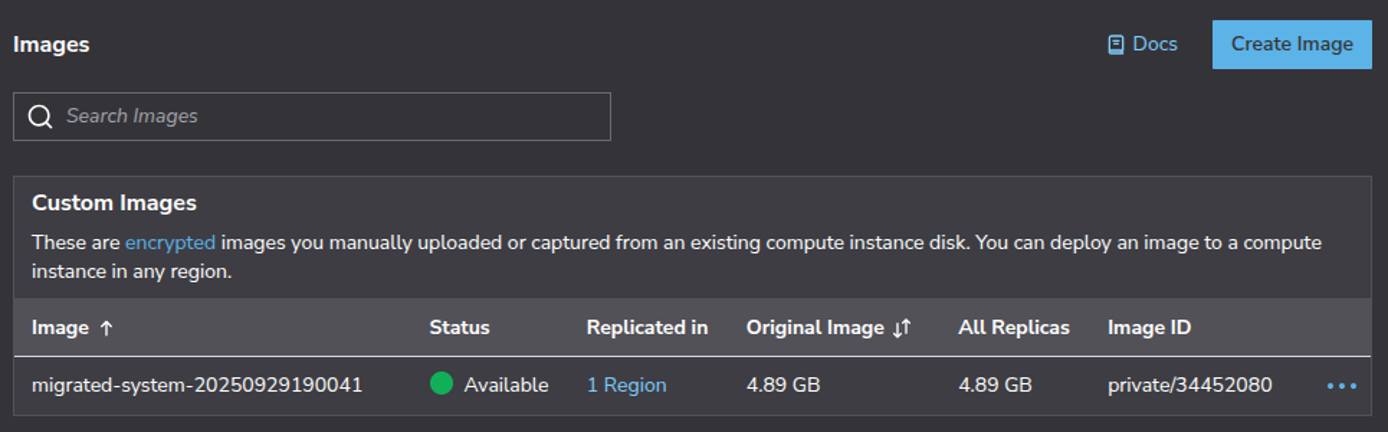
--> linode.migration: Linode image: migrated-system-20250929190041 (private/34452080)
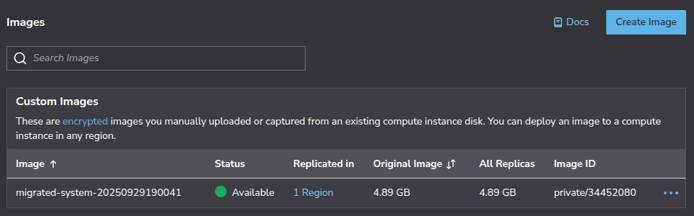
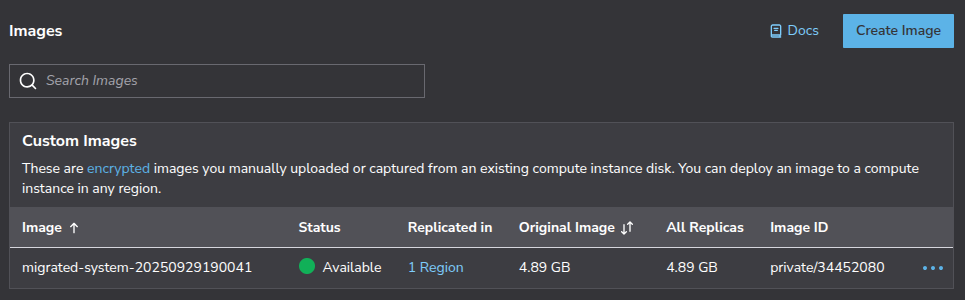
The key information here is the image label (migrated-system-20250929190041) for identification in Cloud Manager and the image ID (private/34452080) for API and CLI usage.
When the build completes, the image appears in the Images screen in Akamai Cloud Manager:
Deploy a New Akamai Cloud VM
With your golden image created, follow this guide for deploying an image to a new Akamai Cloud VM.
Once deployed, run the following commands to verify the migrated VM is functioning correctly:
systemctl status nginx --no-pager
systemctl status express-api --no-pager
ss -tulnp | grep :3000
curl localhost
curl localhost:3000
curl localhost/api/
ls -la /home/ubuntu/userdata
systemctl --failed
Confirm that:
nginxisactiveandrunningexpress-apiisactiveandenabled- Port
3000is listening - The
rootendpoint returns the expected HTML response - The
/api/endpoint returns JSON - The
userdatadirectory exists and contains expected files - No failed
systemdunits are reported
You have now migrated your VM to Akamai Cloud using Packer. This approach makes the migration process repeatable, easier to version, and simpler to automate.
Post-Migration Tasks
After your migrated VM is running and validated, review your environment and make any remaining adjustments.
Update firewall rules to match your desired network environment, either with a firewall installed on your Akamai Cloud VM or with an Akamai Cloud Firewall. Update hardcoded IP addresses in application configurations and database connection strings. Reconfigure any provider-specific services, such as AWS S3 or CloudWatch, to use appropriate Akamai Cloud services or other replacements.
For databases and datasets that may be exceptionally large (for example, over 1 GB), migrate them separately from the Packer build. Use database-specific tools for reliable transfers. For guidance on migrating from self-hosted databases (such as MySQL or PostgreSQL) to managed databases, see these resources.
For large file stores and media libraries, use rsync over SSH for direct transfers or Akamai Object Storage as an intermediate location. Attach Block Storage volumes for large persistent datasets. For detailed guidance, see the following migration guides:
- Migrate from AWS EBS to Akamai Block Storage
- Migrate from Azure Disk Storage to Akamai Block Storage
- Migrate from GCP Hyperdisk and Persistent Disk to Akamai Block Storage
Plan your DNS cutover carefully to minimize downtime. Lower TTL values 24–48 hours before migration for faster propagation and document all DNS records requiring updates (such as A, CNAME, MX, and TXT records). Consider migrating staging systems first, then gradually shifting production traffic. Keep your old environment running for at least 24–72 hours after the transition in case a rollback is required.
Continue monitoring your migrated VM and adjust resources as needed. Use Akamai Cloud Manager compute metrics or tools like htop, iostat, and vmstat to monitor resources. Resize to a larger plan if you are experiencing CPU, memory, or I/O bottlenecks. Alternatively, if your resources are consistently underutilized, downsize to reduce costs. Tune web server worker processes and connection limits. Optimize database memory and cache sizes based on workload. Implement or expand caching layers (for example, Redis and Memcached) for better performance.
Finally, set up automated backups for your VM disk.
Troubleshooting Common Issues
The most common build-time issue is failed image creation, while post-migration application issues typically stem from network problems or permission issues.
Failed Image Creation
If the Packer build fails during image creation, you may see output similar to the following:
==> linode.migration: Failed to wait for image creation: event 1146467561 has failed
==> linode.migration: Step "stepCreateImage" failed
Image creation failures are often caused by Akamai Cloud custom image size limits (6 GB uncompressed). By default, if Packer encounters this error, it terminates the build and cleans up the temporary VM.
Because the packer build command was run with the --on-error=ask flag, Packer prompts you to choose how to proceed when it encounters the image creation error:
==> linode.migration: [c] Clean up and exit, [a] abort without cleanup, or [r] retry step (build may fail even if retry succeeds)?If you select [a] abort without cleanup, Packer leaves the temporary VM intact. You can boot it and use it directly as your migrated VM. If you still wish to create a golden image from this VM, then:
- Perform any necessary disk cleanup to reduce disk usage to under 4.5 GB (use
df -hto see disk usage). - Power off the VM.
- Resize the storage disk to be 5500 MB, so that the resulting image is less than 6 GB (see our guide on capturing an image from an existing Akamai Cloud VM).
- Create an image from the VM.
Networking Problems
- Check logs for connection timeouts or “connection refused” errors.
- Verify that firewall rules allow required traffic.
- Update applications using cloud provider metadata services to use the Akamai Cloud Metadata Service API.
- Debug network issues with
tcpdumporss. - Review system and application logs (such as NGINX, databases, and custom apps) with
journalctl -xeand the relevant files in/var/log/.
Permission Issues
- Verify that web server files are owned by the correct user (typically
www-data). - Check that application directories have appropriate read/write permissions.
- Ensure environment variables are properly set and file paths are correct.
- Check service status with
systemctl statuswhen ownership or file path issues may be preventing startup.
This page was originally published on
