
Product docs and API reference are now on Akamai TechDocs.
Search product docs.
Search for “” in product docs.
Search API reference.
Search for “” in API reference.
Search Results
results matching
results
No Results
Filters
Migrating Virtual Machines to Akamai Cloud With Packer
Traducciones al EspañolEstamos traduciendo nuestros guías y tutoriales al Español. Es posible que usted esté viendo una traducción generada automáticamente. Estamos trabajando con traductores profesionales para verificar las traducciones de nuestro sitio web. Este proyecto es un trabajo en curso.
Organizations may migrate to Akamai Cloud for various reasons, including cost optimization and improved performance. Whether you’re looking to consolidate providers or take advantage of Akamai’s competitive pricing and dedicated resources, migrating existing virtual machines can seem like a daunting task.
This guide provides a provider-agnostic approach to migrating a compute instance to Akamai Cloud using HashiCorp Packer.
Although this guide uses an AWS EC2 instance as its primary example with screenshots and specific commands, the methodology applies to virtual machines from any cloud provider or on-premises infrastructure.
By the end of this walkthrough, you’ll have a repeatable, automated process for migrating your virtual machines that captures your applications, configurations, and data while leveraging the infrastructure advantages of Akamai Cloud.
How Packer Works for VM Migration
Understanding how Packer approaches VM migration is crucial for setting proper expectations and planning an effective migration strategy.
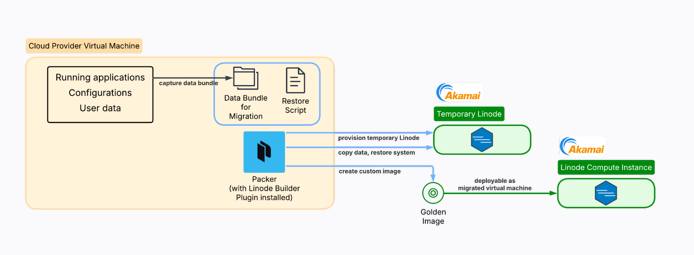
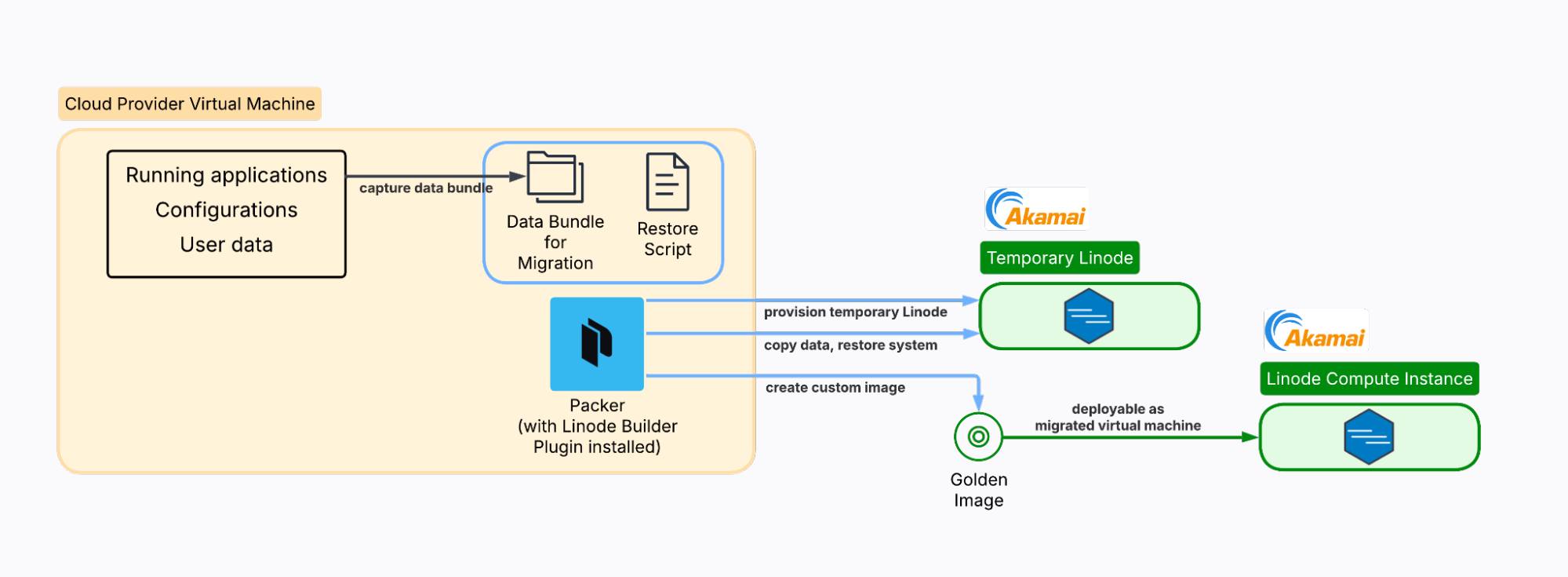
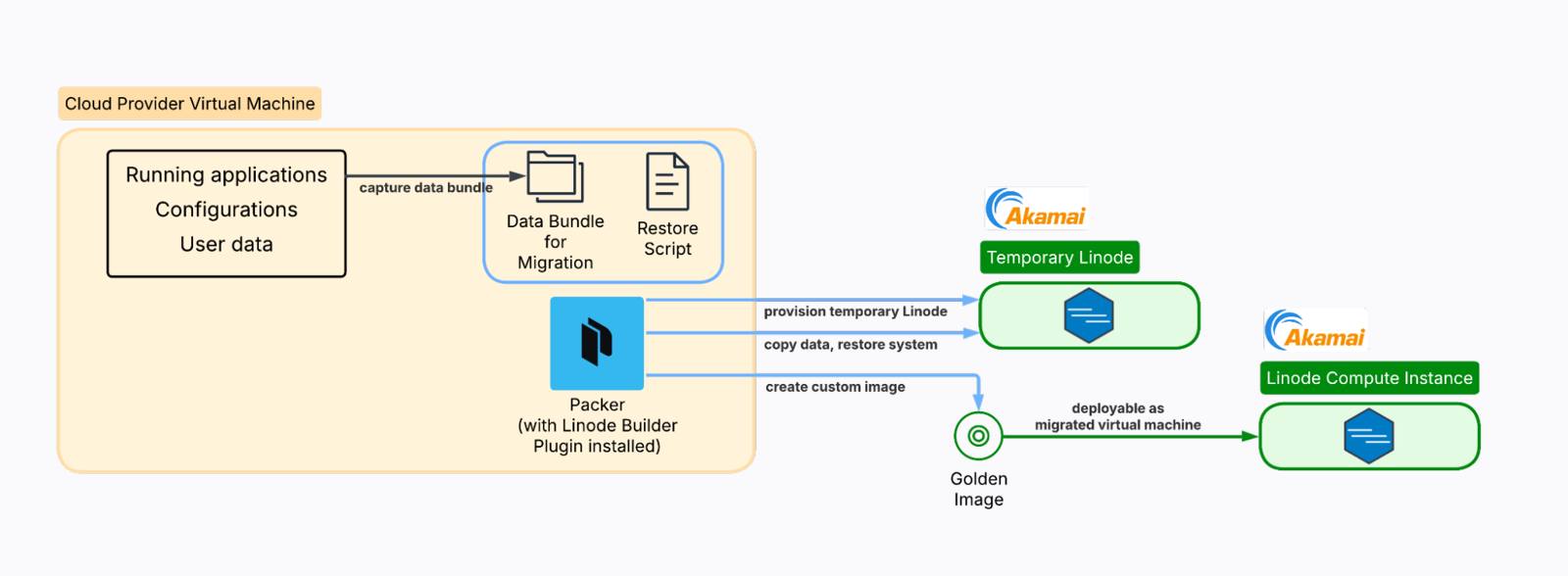
Unlike traditional imaging tools that create bit-for-bit copies of existing disks, Packer takes a different approach. It creates a new virtual machine from a base image (such as Ubuntu 22.04) and then uses provisioners to replicate your configuration and bundle your data during the build process. The result is a “golden image” that contains your applications and data, ready for deployment on Linode’s infrastructure.
This approach means Packer creates a fresh, clean installation rather than cloning your existing system state. While this requires more setup, it often results in a more reliable and optimized final image.
What gets migrated and what doesn’t
It’s important to understand what Packer can and cannot migrate:
Successfully migrated
- Applications and installed packages
- Configuration files and system settings
- User data and application files
- Database dumps and backups
- SSL certificates and environment files
- Service configurations and startup scripts
Not migrated
- Exact OS state and kernel modules
- Running processes and their current state
- Temporary files and cached data
- System logs and transient data
Requires special planning
- Large databases (may need a separate migration strategy)
- SSL certificates with private keys
- Secrets and API keys
- Third-party integrations and external dependencies
Why use Packer instead of a direct image upload?
Akamai Cloud supports direct image uploads, but this approach has limitations. Direct uploads are constrained by size limits (6GB uncompressed / 5GB compressed) and require specific disk image formats. Many production systems exceed these size constraints, especially when including application data and databases.
Packer’s Linode builder plugin provides an automated alternative that helps keep migrated disk sizes slim enough to stay within these size constraints, and it enables repeatable builds. The process is API-driven and version-controllable, and it can be integrated into CI/CD pipelines for ongoing infrastructure management.

Prerequisites and Assumptions
The example used in this guide is a simple AWS EC2 environment running NGINX and an Express API, with additional user data stored in /home/ubuntu/userdata. You can replicate this environment by creating an AWS CloudFormation stack from the template found in this GitHub repository.
This guide assumes access to administrative credentials and CLI tools for both AWS (or your source VM cloud provider) and Akamai Cloud. You should have the ability to view and modify relevant cloud resources in both environments.
You will need SSH access to your source VM with the ability to install Packer (sudo access required). On the Akamai side, you will need an Akamai Cloud account and the ability to generate an API token.
Pre-Migration Assessment and Planning
Proper planning is essential for a successful migration. Take time to thoroughly assess your current environment before proceeding.
Step 1: Inventory your environment
Start by documenting what’s currently running on your source VM:
dpkg --get-selections > installed-packages.txtsystemctl list-units --type=service --state=running UNIT LOAD ACTIVE SUB DESCRIPTION
acpid.service loaded active running ACPI event daemon
chrony.service loaded active running chrony, an NTP client/server
cron.service loaded active running Regular background program processing daemon
dbus.service loaded active running D-Bus System Message Bus
express-api.service loaded active running Express API Service
fwupd.service loaded active running Firmware update daemon
getty@tty1.service loaded active running Getty on tty1
irqbalance.service loaded active running irqbalance daemon
ModemManager.service loaded active running Modem Manager
multipathd.service loaded active running Device-Mapper Multipath Device Controller
networkd-dispatcher.service loaded active running Dispatcher daemon for systemd-networkd
nginx.service loaded active running A high performance web server and a reverse proxy server
...df -h; du -sh /var /opt /home/ubuntuFilesystem Size Used Avail Use% Mounted on
/dev/root 6.8G 2.8G 4.0G 41% /
tmpfs 458M 0 458M 0% /dev/shm
tmpfs 183M 912K 182M 1% /run
tmpfs 5.0M 0 5.0M 0% /run/lock
efivarfs 128K 3.6K 120K 3% /sys/firmware/efi/efivars
/dev/nvme0n1p16 881M 149M 671M 19% /boot
/dev/nvme0n1p15 105M 6.2M 99M 6% /boot/efi
tmpfs 92M 12K 92M 1% /run/user/1000
881M /var
4.0K /opt
12M /home/ubuntusudo ss -tulnpNetid State Recv-Q Send-Q Local Address:Port Peer Address:Port Process
udp UNCONN 0 0 127.0.0.54:53 0.0.0.0:* users:(("systemd-resolve",pid=8214,fd=16))
udp UNCONN 0 0 127.0.0.53%lo:53 0.0.0.0:* users:(("systemd-resolve",pid=8214,fd=14))
udp UNCONN 0 0 172.31.31.1%ens5:68 0.0.0.0:* users:(("systemd-network",pid=19258,fd=23))
udp UNCONN 0 0 127.0.0.1:323 0.0.0.0:* users:(("chronyd",pid=13440,fd=5))
udp UNCONN 0 0 [::1]:323 [::]:* users:(("chronyd",pid=13440,fd=6))
tcp LISTEN 0 4096 127.0.0.54:53 0.0.0.0:* users:(("systemd-resolve",pid=8214,fd=17))
tcp LISTEN 0 511 0.0.0.0:80 0.0.0.0:* users:(("nginx",pid=20521,fd=5),("nginx",pid=20520,fd=5),("nginx",pid=19520,fd=5))
tcp LISTEN 0 4096 0.0.0.0:22 0.0.0.0:* users:(("sshd",pid=20549,fd=3),("systemd",pid=1,fd=193))
tcp LISTEN 0 511 0.0.0.0:3000 0.0.0.0:* users:(("node",pid=20507,fd=18))
tcp LISTEN 0 4096 127.0.0.53%lo:53 0.0.0.0:* users:(("systemd-resolve",pid=8214,fd=15))
tcp LISTEN 0 511 [::]:80 [::]:* users:(("nginx",pid=20521,fd=6),("nginx",pid=20520,fd=6),("nginx",pid=19520,fd=6))
tcp LISTEN 0 4096 [::]:22 [::]:* users:(("sshd",pid=20549,fd=4),("systemd",pid=1,fd=194))Create a comprehensive inventory that includes:
- All installed applications and services
- Custom configurations and their locations
- User accounts and permission structures
- Database systems and their data sizes
- Web server configurations
- SSL certificates and their renewal processes
Step 2: Identify critical data and configurations
Identify the essential files and configurations required for your applications to function properly. For example:
- Application source code and binaries
- Configuration files in
/etc/ - User data in home directories
- Application-specific data directories
- Database files or dump locations
- Log files that contain critical historical data
Step 3: Plan your migration strategy
Decide which data to bundle directly into the Packer image and which to migrate separately. For example:
Bundle in the Packer image
- Application code and configurations
- System configurations
- Small databases (< 1GB)
- SSL certificates
- User accounts and basic data
Migrate separately
- Large databases (use database-specific migration tools)
- Large file stores and media libraries
- Log archives
- Backup files
Consider your downtime requirements and plan accordingly. Some applications can be migrated with minimal downtime, while others may require a maintenance window.
Setting Up the Migration Environment
Step 1: Verify your source operating system
First, determine exactly what operating system you’re running:
lsb_release -acat /etc/os-releaseFor the example AWS EC2 environment, you might see output like the following:
No LSB modules are available.
Distributor ID: Ubuntu
Description:    Ubuntu 24.04.3 LTS
Release:        24.04
Codename: nobleuname -mx86_64Step 2: Find a compatible Linode base image
Based on your source VM architecture, identify the corresponding base image available on Linode. Use the Linode API to list available images:
export LINODE_TOKEN="your_api_token_here"

curl -H "Authorization: Bearer $LINODE_TOKEN" \
  https://api.linode.com/v4/images | \
  jq '.data[] | select(.is_public == true) | {id: .id, label: .label}'
To filter for Ubuntu images specifically, run the following command:
curl -H "Authorization: Bearer $LINODE_TOKEN" \
  https://api.linode.com/v4/images | \
  jq '.data[] | select(.id | contains("ubuntu")) | {id: .id, label: .label}'
{
"id": "linode/ubuntu22.04",
"label": "Ubuntu 22.04 LTS"
}
{
"id": "linode/ubuntu22.04-kube",
"label": "Ubuntu 22.04 LTS KPP"
}
{
"id": "linode/ubuntu24.04",
"label": "Ubuntu 24.04 LTS"
}
{
"id": "linode/ubuntu16.04lts",
"label": "Ubuntu 16.04 LTS"
}
{
"id": "linode/ubuntu18.04",
"label": "Ubuntu 18.04 LTS"
}
{
"id": "linode/ubuntu20.04",
"label": "Ubuntu 20.04 LTS"
}
{
"id": "linode/ubuntu24.10",
"label": "Ubuntu 24.10"
}For maximum compatibility, choose the image that most closely matches the OS of your source VM.
Step 3: Install and configure Packer
Follow the instructions provided here to install Packer on your source VM.
udo mkdir -m 0755 -p /etc/apt/keyrings/
curl -fsSL https://apt.releases.hashicorp.com/gpg | sudo gpg --dearmor -o /etc/apt/keyrings/hashicorp-archive-keyring.gpg

echo "deb [arch=$(dpkg --print-architecture) signed-by=/etc/apt/keyrings/hashicorp-archive-keyring.gpg] https://apt.releases.hashicorp.com $(grep -oP '(?<=UBUNTU_CODENAME=).*' /etc/os-release || lsb_release -cs) main" | sudo tee /etc/apt/sources.list.d/hashicorp.listsudo apt-get update && sudo apt-get install packerpacker --versionPacker v1.14.2sudo packer plugins install github.com/linode/linodeInstalled plugin github.com/linode/linode v1.6.8 in "/home/ubuntu/.config/packer/plugins/github.com/linode/linode/packer-plugin-linode_v1.6.8_x5.0_linux_amd64"Data Capture and Bundling
The data capture phase is crucial for ensuring your migrated system has everything it needs to function properly.
Step 1: Create a data capture script
On your source VM, create a folder named packer-migration.
sudo mkdir /usr/packer-migration
sudo cd /usr/packer-migration
Create a script (capture-system.sh) to systematically capture your system configuration and data. Using the example AWS EC2 environment for this guide, your data capture script may look like this:
| |
Set the proper executable permissions on the script.
sudo chmod +x /usr/packer-migration/capture-system.shStep 2: Run the capture process
sudo /usr/packer-migration/capture-system.shStarting system capture for Packer migration...
Capturing system configuration...
WARNING: apt does not have a stable CLI interface. Use with caution in scripts.
Capturing configuration files...
Capturing application data...
Capturing user configurations...
Capturing user directory: ubuntu
Capturing root user configurations...
Capturing database dumps...
Capturing SSL certificates...
Capturing environment files...
Capturing recent logs...
Capturing scheduled tasks...
Creating inventory file...
Data capture complete! Bundle located at: /usr/packer-migration/bundle-data
Bundle size: 45MStep 3: Review the captured data for completeness
sudo du -sh /usr/packer-migration/bundle-data/*28K /usr/packer-migration/bundle-data/apps
48K /usr/packer-migration/bundle-data/apt-packages.txt
240K /usr/packer-migration/bundle-data/configs
3.7M /usr/packer-migration/bundle-data/databases
8.0K /usr/packer-migration/bundle-data/enabled-services.txt
4.0K /usr/packer-migration/bundle-data/env-files
20K /usr/packer-migration/bundle-data/installed-packages.txt
4.0K /usr/packer-migration/bundle-data/inventory.txt
864K /usr/packer-migration/bundle-data/logs
0 /usr/packer-migration/bundle-data/root-crontab.txt
644K /usr/packer-migration/bundle-data/ssl
0 /usr/packer-migration/bundle-data/user-crontab.txt
40M /usr/packer-migration/bundle-data/usersBundling best practices
When deciding what to include in your bundle, consider adopting the following guidelines to keep your bundle size manageable:
- Keep the total bundle under 1GB for optimal build times.
- Use
.tar.gzcompression for large directories. - Remove unnecessary files before bundling.
- Consider splitting very large applications across multiple images.
For security considerations, be mindful of sensitive data in your bundle:
- Review environment files for hardcoded secrets.
- Consider using Linode’s metadata service for secrets instead of bundling them.
- Ensure proper file permissions are maintained during migration.
- Remove or replace development keys and certificates.
- Audit database dumps for sensitive information.
Preparing the Destination Restore Process
On the destination VM, Packer will run a setup and restore script that installs the necessary applications and effectively mirrors the data capture process.
Step 1: Create a setup and restore script
On the source VM, in /usr/packer-migration, create a file called setup-and-restore.sh. Packer will copy this file over to the destination VM.
| |
Set the proper executable permissions on the script.
sudo chmod +x /usr/packer-migration/setup-and-restore.shBuilding the Packer Template
The Packer template automates the entire migration by spinning up a temporary Linode, copying your data bundle to it, running scripts to install your applications and restore your configurations, then creating a snapshot of the configured system. This results in a custom Linode image that contains your migrated environment, ready to deploy as a new instance.
Step 1: Copy the working starter template
Rather than building a template from scratch, you can start with the following template that covers the most common migration scenarios. This file, migrate-to-linode.pkr.hcl, should also be placed in the /usr/packer-migraton folder.
| |
Note that the template directs Packer to copy the bundle-data folder (created by the data capture script) to the destination VM. It also copies setup-and-restore.sh and executes the script on the destination VM.
Step 2: Validate and test the template
Before running the full build, validate your template with the following Packer command:
sudo LINODE_TOKEN="your_api_token_here" \
     packer validate migrate-to-linode.pkr.hcl
The configuration is valid.Advanced techniques
While the starter template covers most migration scenarios, Packer supports advanced techniques for complex configurations:
- Attach Linode metadata: Add user-defined metadata to the creation of the Linode, such as authorized public SSH keys, root password, or image naming configurations.
- Ansible provisioner: For complex configuration management and orchestration
- Multiple builders: To create images for multiple cloud providers simultaneously
- Post-processors: For image compression, upload to registries, or integration with other tools
- Variable files: For environment-specific configurations and secrets management
For detailed information on these advanced features, refer to the HashiCorp Packer documentation.
Executing the Migration Build
With your template ready and data captured, you’re ready to execute the migration build.
Step 1: Run the complete migration build
Execute the build process with the following command, enabling detailed logging to monitor the build process.
sudo PACKER_LOG=1 \
     PACKER_LOG_PATH="./packer-build.log" \
     LINODE_TOKEN="your_api_token_here" \
     packer build \
     --on-error=ask \
     migrate-to-linode.pkr.hcl
During the build, Packer goes through several distinct phases:
- Create temporary Linode: Provision a Linode instance using your specified base image
- Connect via SSH: Establish SSH connectivity to the temporary instance
- Run Provisioners: Execute each provisioner in sequence (e.g., file uploads, shell scripts, etc.).
- Create Image: Take a snapshot of the configured instance to create your custom image
- Cleanup: Destroys the temporary instance, leaving only your custom image
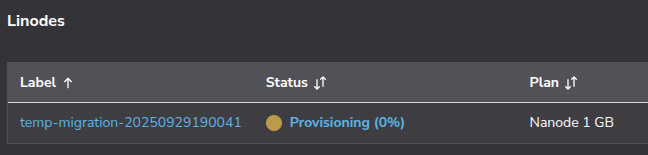
Soon after the build process begins, you will see in the Akamai Cloud Console that the temporary Linode has been provisioned.
The Packer output will show the result of running through its process.
==> linode.migration: Running builder ...
==> linode.migration: Creating temporary SSH key for instance...
==> linode.migration: Creating Linode...
==> linode.migration: Using SSH communicator to connect: 172.233.131.208
==> linode.migration: Waiting for SSH to become available...
==> linode.migration: Connected to SSH!
==> linode.migration: Provisioning with shell script: /tmp/packer-shell1500940104
==> linode.migration: Uploading ./bundle-data/ => /tmp/bundle-data
==> linode.migration: Uploading ./setup-and-restore.sh => /tmp/setup-and-restore.sh
==> linode.migration: Provisioning with shell script: /tmp/packer-shell1565007556…
…
==> linode.migration: Reading package lists...
==> linode.migration: Building dependency tree...
==> linode.migration: Reading state information...
==> linode.migration: 0 upgraded, 0 newly installed, 0 to remove and 3 not upgraded.
==> linode.migration: Reading package lists...
==> linode.migration: Building dependency tree...
==> linode.migration: Reading state information...
==> linode.migration: Shutting down Linode...
==> linode.migration: Creating image...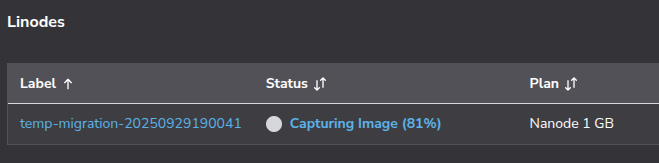
The build process may take 10 minutes or more, depending on the size of your bundle and the complexity of your restoration script. After the build completes successfully, you will see output that looks like this:
Build 'linode.migration' finished after 10 minutes 12 seconds.

==> Wait completed after 10 minutes 12 seconds

==> Builds finished. The artifacts of successful builds are:
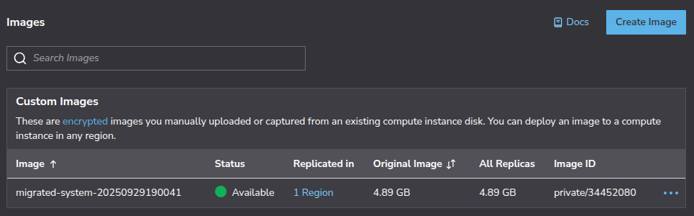
--> linode.migration: Linode image: migrated-system-20250929190041 (private/34452080)
The key information here is:
- Image label:
migrated-system-20250929024415(for identification in Cloud Manager) - Image ID:
private/34451688(for API and CLI usage)
Step 3: Deploy a new Linode from the golden image
With your golden image created, follow this guide for deploying an image to a new Linode.
Step 4: Test the migrated instance
Once your migrated Linode is running, connect via SSH. You can also reset the root password in the Akamai Cloud Console, on the Settings page for your Linode Compute Instance. Go through the following steps to test your migrated instance:
- Check for basic network connectivity and system status.
- Check disk usage and verify the presence of expected folders.
- Verify that your expected services (web servers, databases, etc.) are running correctly.
- Review any failed services (
systemctl --failed). - Test API endpoints and functionality.
- Check file permissions and ownership.
- Validate SSL certificates and HTTPS functionality.
You’ve successfully migrated your virtual machine to Linode using Packer. This automated approach gives you several advantages:
- Repeatability: Your templates can create identical environments
- Version Control: Templates can be stored in git for tracking changes
- Automation: The process works with CI/CD pipelines
- Documentation: The template documents your infrastructure
Post-Migration Tasks and Optimization
Final configuration adjustments
After your migrated instance is running and validated, you’ll need to make several final adjustments:
- Update firewall rules (either with a firewall installed on your Linode instance or with a Linode Cloud Firewall) to match your desired network environment.
- Review and update hardcoded IP addresses in application configurations and database connection strings.
- Reconfigure cloud-provider-specific services (like AWS S3 or CloudWatch) to use Linode alternatives.
- Monitor resource usage for a few days and resize your instance if needed.
- Set up automated backups of your VM disk.
Data migrations for large datasets or databases
For databases and datasets that may be exceptionally large (for example, exceeding 1GB), migrate them separately from the Packer build. Use database-specific tools for reliable transfers. For guidance on migrating from self-hosted databases (such as MySQL or PostgreSQL) to managed database, see here.
For large file stores and media libraries, use rsync over SSH for direct transfers or Akamai Object Storage as an intermediate location. Attach Block Storage volumes for large persistent datasets. For detailed guidance, see the following migration guides:
- Migrate from AWS EBS to Linode Block Storage
- Migrate from Azure Disk Storage to Linode Block Storage
- Migrate from GCP Hyperdisk and Persistent Disk to Linode Block Storage
DNS updates and traffic cutover planning
Plan your DNS cutover carefully to minimize downtime:
- Lower DNS TTL values 24-48 hours before migration for faster propagation.
- Document all DNS records requiring updates (A, CNAME, MX, TXT records).
- Consider a phased cutover: migrate staging first, then gradually shift production traffic.
- Keep your old environment running 24-72 hours after cutover to allow for the possibility of a rollback.
Troubleshooting Common Issues
Failed image creation
It is possible that the Packer build process fails on image creation, and you see output that looks like the following:
==> linode.migration: Failed to wait for image creation: event 1146467561 has failed
==> linode.migration: Failed to wait for image creation: event 1146467561 has failed
==> linode.migration: Step "stepCreateImage" failed
The cause of the image creation failure is likely related to custom image size limits imposed by Linode (6GB uncompressed). Ordinarily, if Packer encounters this kind of error, it will terminate the build process and perform clean up steps, including the deletion of the temporary Linode.
Because you ran the packer build command with --on-error=ask, Packer will instead ask you what it ought to do when it encounters the image creation error:
==> linode.migration: [c] Clean up and exit, [a] abort without cleanup, or [r] retry step (build may fail even if retry succeeds)?If you select [a] abort without cleanup, then Packer will leave the temporary Linode intact. You can boot it up and use it directly as your migrated VM. If you still wish to create a golden image from this Linode, then:
- Perform any necessary disk cleanup to reduce the disk usage to approximately less than 4.5 GB (use
df -hto see disk usage). - Power off the Linode.
- Resize the storage disk to be 5500 MB, so that the resulting image will be less than 6 GB.
- Create an image from the Linode.
Post-migration application issues
Application issues after migration typically stem from network problems or permission issues.
Network problems
- Check for connection timeouts or “connection refused” errors in logs.
- Verify firewall rules allow necessary traffic.
- Update applications using cloud-provider metadata services to use Linode’s Metadata Service API.
Permission issues
- Verify web server files are owned by the correct user (typically
www-data). - Check application directories have appropriate read/write permissions.
- Ensure environment variables are properly set and file paths are correct.
Performance tuning and resource sizing
Monitor your migrated Linode’s performance and optimize as needed:
- Use Akamai Cloud Manager compute metrics or tools like
htop,iostat, andvmstatto monitor resources. - Resize to a larger plan if you are experiencing CPU, memory, or I/O bottlenecks.
- If your resources are consistently underutilized, downsize to reduce costs.
- Tune web server worker processes and connection limits.
- Optimize database memory and cache sizes based on workload.
- Implement or expand caching layers (Redis, Memcached) for better performance.
Debugging techniques and log analysis
Use systematic log analysis to troubleshoot issues:
- Check systemd logs with
journalctl -xe. - Review application logs in
/var/log/(such as NGINX, databases, custom apps). - Check service status with
systemctl status <service-name>. - When deeper investigation is needed, enable verbose logging temporarily.
- Debug network issues with
tcpdump,netstat, orss. - Reference your inventory file to identify missing or misconfigured elements.
Additional resources
Packer:
- Documentation
- CLI usage
- Builder plugin for Linode
- Including Linode metadata in build configuration Akamai Cloud:
- Images documentation
- Deploy an image to a new Linode
- Capture an image from an existing Linode
- Using the Metadata Service API
More Information
You may wish to consult the following resources for additional information on this topic. While these are provided in the hope that they will be useful, please note that we cannot vouch for the accuracy or timeliness of externally hosted materials.
This page was originally published on
